

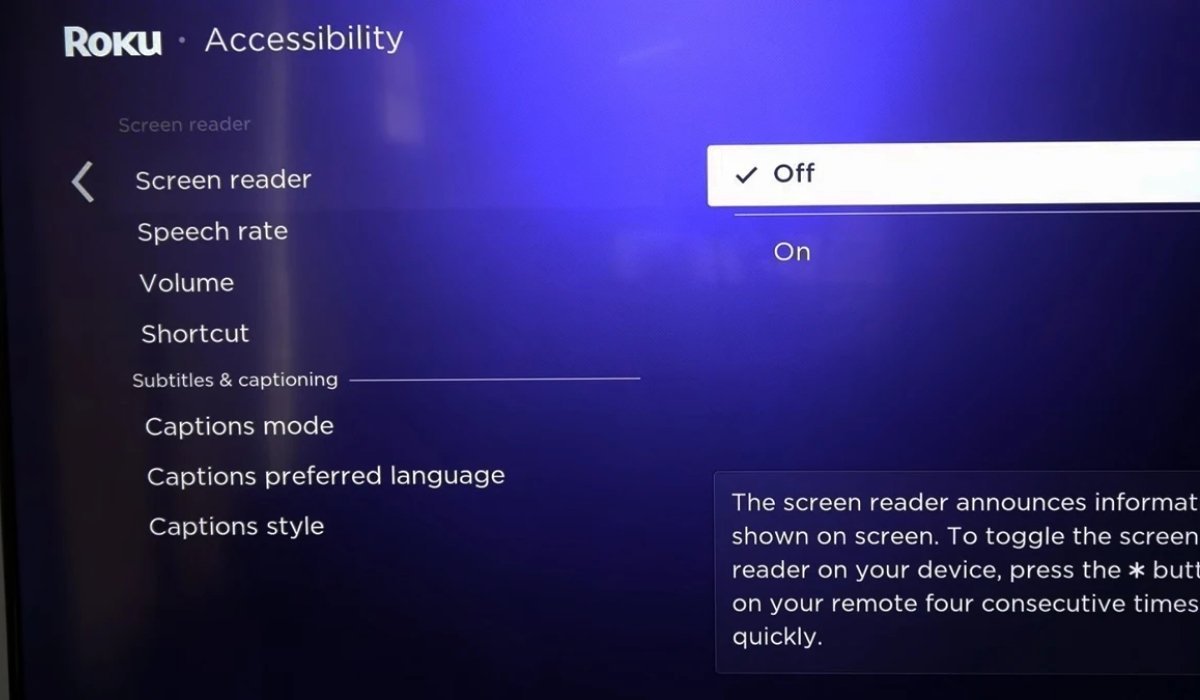
If you have ever been frustrated by an unexpected voice narrating every action on your television, you are likely looking for the best way to turn off screen reader on Roku systems. This feature, often called the Audio Guide, is designed to assist users with visual impairments by reading out menu items, text, and other on-screen elements. While incredibly helpful for those who need it, it can be quite distracting if activated by mistake. Fortunately, disabling this vocal navigation assistant is a simple process that can be completed in just a few moments using your remote control.
| Feature | Details |
| Primary Goal | Turn off screen reader on Roku |
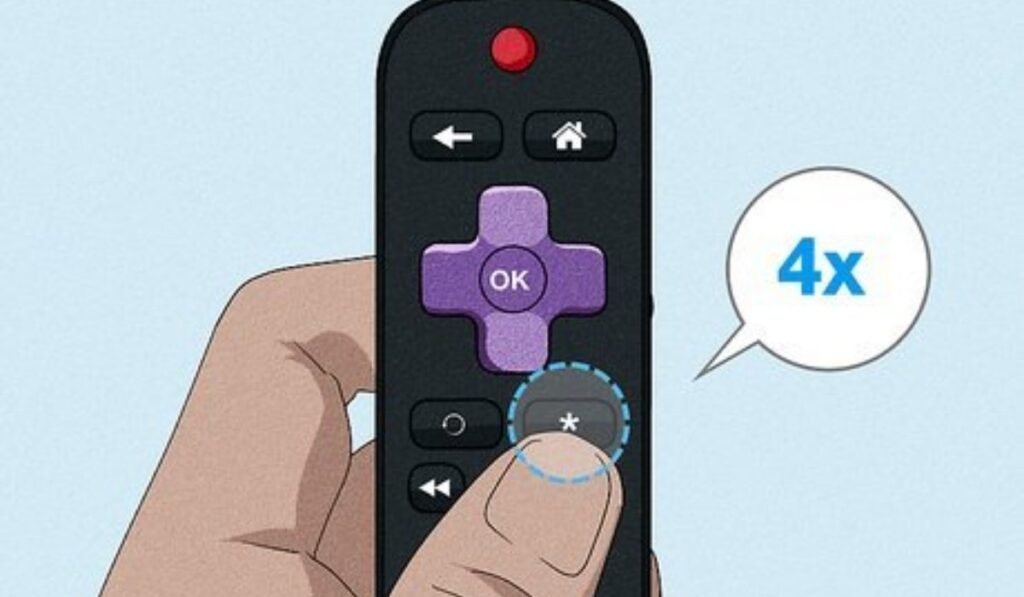
| Shortcut Method | Press the Star (*) button 4 times |
| Menu Method | Settings > Accessibility > Screen Reader |
| Device Compatibility | All Roku TV models and streaming players |
| Alternative Cause | Streaming app Audio Description settings |
The Quickest Method Using Your Remote Control
The fastest way to turn off screen reader on Roku is to use the dedicated remote shortcut. Simply locate the Options or Star (*) button, which is typically found just below the directional pad on the right side of your Roku remote. By pressing this button four times in quick succession, you will immediately toggle the screen reader feature off. You should hear a confirmation message indicating that the feature has been disabled, allowing you to return to your normal, quiet viewing experience without further navigation interruptions.
Using the Settings Menu for Manual Control
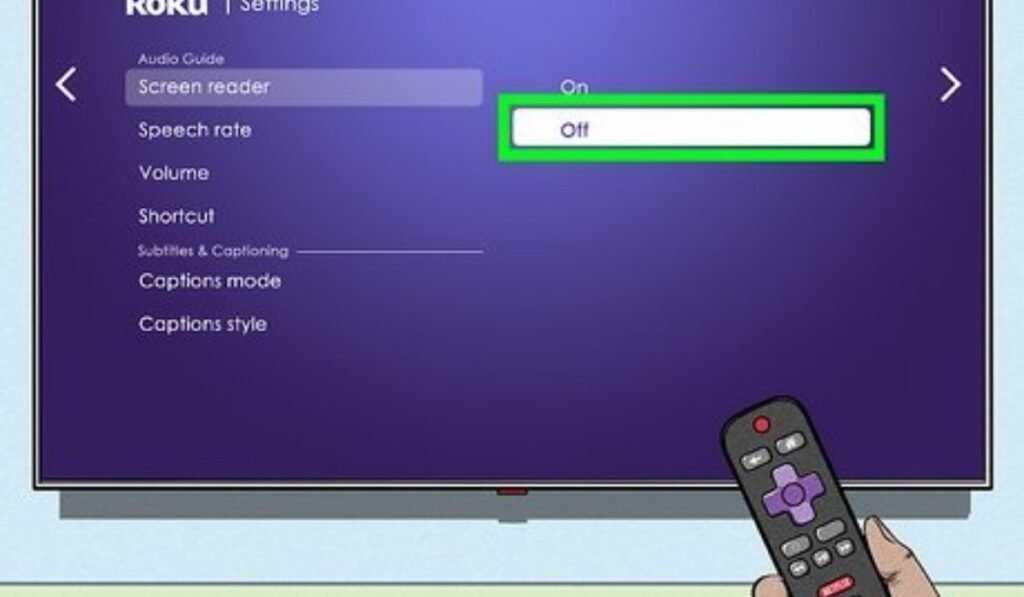
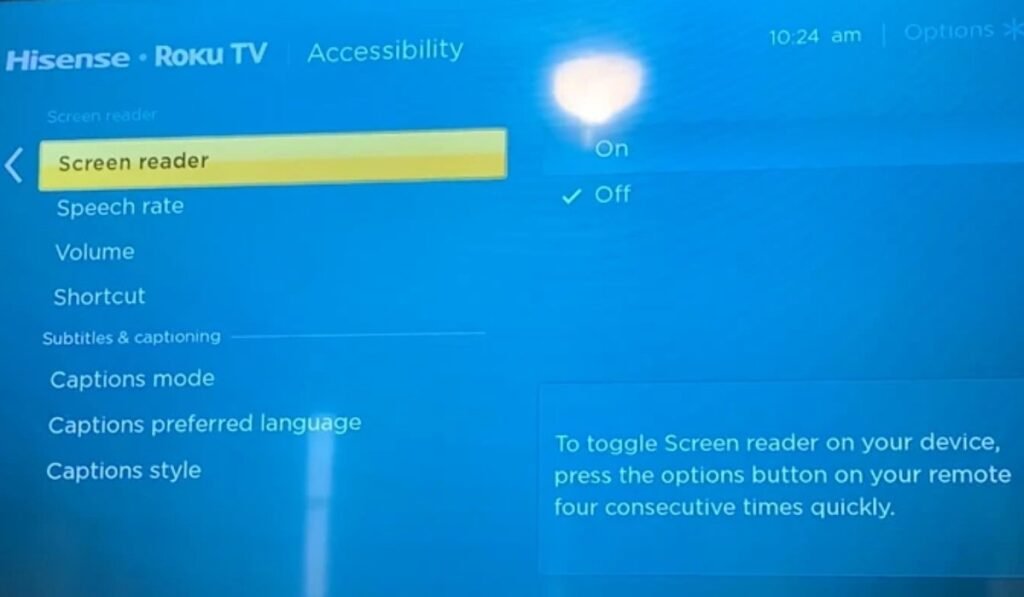
If the remote shortcut does not work, you can easily turn off screen reader on Roku by navigating through the device settings. From your Roku home screen, scroll down to select “Settings”. Navigate to the right and select “Accessibility” from the list of options. Once inside the Accessibility menu, locate “Screen Reader” or “Audio Guide” and press the right arrow to view the status. From here, toggle the setting to “Off” and press the “OK” button on your remote to save your changes.
Why the Screen Reader Might Be Active
Understanding why you might need to turn off screen reader on Roku helps prevent accidental reactivation in the future. Many users discover this feature is enabled after a child accidentally presses the star button multiple times or during the initial device setup process. Because it is a built-in accessibility tool, it is meant to be easily accessible, which unfortunately means it can also be easily triggered. Keeping your remote in a safe place or disabling the shortcut in the Accessibility menu can prevent this from becoming a recurring issue for your household.
Troubleshooting If the Voice Continues
Sometimes, even after you turn off screen reader on Roku system settings, you might still hear narration while watching specific content. If the voice persists, you are likely hearing “Audio Description” provided by the streaming app itself, such as Netflix, Hulu, or Disney+. This is different from the system-wide screen reader. To stop this, press the up or down arrow on your remote during video playback to open the audio settings. Look for an audio track that does not include the words “Audio Description” and select it to stop the narrator.
Checking for Software Updates
If you continue to face issues and need to turn off screen reader on Roku but the settings seem unresponsive, a system update might be required. Occasionally, bugs within the operating system can cause accessibility features to behave unexpectedly. Navigate to your Roku “Settings,” go to “System,” and select “Software update” to check for the latest version. Turn Off Screen Reader on Roku Installing any available updates can resolve glitchy behavior and restore standard functionality to your interface, ensuring that your accessibility settings stay exactly as you have configured them for your personal preferences.
Understanding Audio Description Settings in Apps
It is important to distinguish between the system-level navigation and app-specific narration when you turn off screen reader on Roku devices. Apps like HBO Max, Amazon Prime, and Apple TV+ have their own internal settings for audio tracks. If you hear descriptive audio, checking the “Audio and Subtitles” menu within the specific app is the correct way to disable it. The system-wide narrator only covers the Roku dashboard, so if the voice is describing the action on screen during a movie, it is always a setting inside that specific streaming app.
Customizing Your Accessibility Experience
Once you know how to turn off screen reader on Roku hardware, you can also customize other accessibility features to suit your needs. The Accessibility menu also allows you to manage closed captioning, change the text size, or even adjust the speech rate and volume if you do decide to use the screen reader in the future. Knowing how to manage these settings provides you with full control over your TV experience, ensuring that your Roku device is configured perfectly for your household without any unwanted audio surprises or navigation difficulties.
Disabling the Remote Shortcut
If you find yourself repeatedly needing to turn off screen reader on Roku because of accidental button presses, you can actually disable the remote shortcut entirely. In the Accessibility settings menu, look for “Shortcut” options. By choosing to disable this function, you effectively remove the risk of the Star button triggering the voice guide. This is a great preventative measure for families or busy households where the remote might get tossed around or handled frequently by people who are not familiar with the specific navigation shortcuts.
When to Contact Roku Support
If you have tried every method to turn off screen reader on Roku and the device still refuses to stop talking, you may need to reach out to professional support. Persistent issues might indicate a deeper hardware fault or a severe software conflict that requires expert intervention. You can visit the official Roku support website to chat with a representative or find contact information for your specific region. Sometimes, a factory reset is the final option to return your device to its original state, though this should be considered a last resort.
Maintaining a Clutter-Free Interface
Managing your Roku settings effectively means you don’t have to turn off screen reader on Roku more often than necessary. Keep your home screen organized by removing unused channels and keeping your firmware updated. A well-maintained device is less likely to encounter random software errors. By understanding how the accessibility features function, you become a more confident user, capable of troubleshooting minor issues independently. Remember that these tools exist to help, and once you master the toggles, they become a convenient part of your overall entertainment setup rather than a source of confusion.
The Evolution of Roku Accessibility
The feature you turn off screen reader on Roku devices to manage is actually part of a larger, positive trend in television technology. Roku has made significant strides in ensuring their interface is accessible to all users, including those with visual or hearing impairments. This commitment to inclusion is why the Audio Guide and closed captioning options are so easily accessible. While it may be annoying for an average user to trigger, the ease of access is a benefit for those who rely on these tools daily to navigate their favorite streaming content.
Comparing System Narrator vs. App Narration
Many users confuse the two when they try to turn off screen reader on Roku systems. The System Narrator (Screen Reader) reads the Roku menus and home screen icons. App Narration (Audio Description) is a track within a video that describes scenes for the blind. If you can navigate your settings without hearing a voice, but the voice returns once you start a movie, you are dealing with Audio Description settings within the app itself, not the Roku system accessibility. Differentiating these two is key to resolving audio issues quickly.
Helpful Tips for Remote Navigation
To avoid having to turn off screen reader on Roku repeatedly, be mindful of how you handle your remote. The Star button is positioned very close to the directional pad, which is why accidental presses are so common. Some users find success by using a protective silicone cover for their remote, which can provide a tactile barrier that prevents accidental button activation. Additionally, teaching other members of the household about the remote’s functions can prevent them from triggering the voice guide and saves you the time of having to navigate back to the settings menu to fix it.
Understanding Closed Captioning Settings
While you learn to turn off screen reader on Roku, you might also notice the Closed Captioning options in the same menu. Closed captions are helpful for those who are hard of hearing and can be toggled on or off in the same Accessibility category. If you find yourself in the settings menu to disable the voice guide, take a moment to look at your captioning settings to ensure they are set to your preference. Having all your accessibility preferences managed from one central location makes the Roku interface one of the most user-friendly streaming platforms available.
Optimizing Your Streaming Performance
Knowing how to turn off screen reader on Roku is just one aspect of optimizing your device. Your Roku device offers many ways to improve your viewing quality, such as adjusting video output resolution or managing background data usage. By taking control of these settings, you ensure that your device runs efficiently. Spending time in the settings menu is not just for fixing problems like the screen reader; it is an excellent way to discover hidden features that can make your streaming experience smoother, faster, and more tailored to your specific viewing habits.
Final Thoughts on Roku Accessibility
The goal of this guide is to ensure you can turn off screen reader on Roku whenever it becomes a nuisance. By keeping these simple steps in mind—whether using the four-press remote shortcut or the system menu—you can maintain full control over your television’s audio output. Remember that technology is meant to serve your needs, and with a little bit of knowledge, you can bypass the features that do not apply to you while appreciating the accessibility features that help others. Enjoy your streamlined, quiet, and perfectly configured Roku streaming experience every single day.
Summary of Device Best Practices
Before you need to turn off screen reader on Roku again, remember these best practices: keep your remote out of reach of small children, familiarize yourself with the Accessibility menu, and always distinguish between system voice and app-level audio descriptions. A little bit of proactive management goes a long way. With these strategies, you can minimize disruptions and focus entirely on the content you love. If you ever feel stuck, the support community and official Roku documentation are always there to help you regain control over your smart home entertainment systems.
Staying Updated with Roku OS
As Roku continues to update its software, the steps to turn off screen reader on Roku may occasionally see minor interface changes, but the core functionality remains consistent. Staying updated with the latest Roku OS ensures that you have access to the most efficient and user-friendly menus. Always check the system update page periodically. When you are comfortable navigating your settings, managing your preferences becomes effortless. Feel confident in your ability to customize your TV and enjoy the incredible range of content that the Roku platform offers to all its users.
Exploring Further Accessibility Features
Beyond the need to turn off screen reader on Roku, you might find other features useful. Roku offers various ways to make your viewing experience more inclusive, such as high-contrast modes or specialized subtitles. If you are interested in learning more, the official Roku support site is a goldmine of information. By exploring these options, you might discover settings that improve your experience in ways you never thought possible. Knowledge is power, and being an informed Roku user ensures that you get the absolute best value out of your streaming hardware at all times.
Concluding Your Setup
Now that you have successfully learned to turn off screen reader on Roku, you are ready to get back to your favorite shows without any unwanted narration. The process is a breeze once you know where to look. Keep this guide bookmarked or saved just in case you ever need to assist a friend or family member who might accidentally trigger the screen reader on their own device. Empowering others with this knowledge makes the streaming experience better for everyone. Happy streaming and enjoy the crisp, quiet, and personalized interface of your Roku television or streaming player today.
- How do I turn off the screen reader on my Roku?
- You can press the Star (*) button on your remote four times quickly, or go to Settings > Accessibility > Screen Reader and select Off.
- Why is my Roku still talking after I turned off the screen reader?
- If it is still talking, you likely have “Audio Description” enabled within the specific movie or show you are currently watching.
- Can I disable the remote shortcut for the screen reader?
- Yes, you can go to Settings > Accessibility > Screen Reader > Shortcut and choose “Disabled” to prevent accidental activation.
- Does the screen reader work on all Roku devices?
- Yes, the screen reader feature is available on almost all current Roku TV models and streaming players running Roku OS 7.5 or later.
- Is the screen reader the same as closed captioning?
- No, the screen reader reads text menus aloud, while closed captioning displays written text for dialogue during videos.
